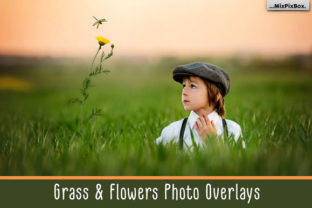
Grass and Flowers Photo Overlays: Practical Integration for Real Creative Workflows
Grass and Flowers Photo Overlays are transparent PNG files—often hand-textured, naturally lit, and carefully composed—that add organic depth, context, or mood to digital images. They’re not filters or presets; they’re layered assets designed for precise, non-destructive control in photo editing software like Photoshop, Affinity Photo, or even Canva (with proper layer support). Their value lies not in novelty, but in how seamlessly they slot into existing creative routines—whether you’re refining a product shot for an e-commerce listing, building social media visuals for a small business, or preparing educational materials that need visual warmth.
Where Grass and Flowers Photo Overlays Fit in the Workflow
These overlays rarely exist in isolation. They’re most effective when treated as one element within a broader sequence: capture → select → refine → contextualize → deliver. That “contextualize” step is where Grass and Flowers Photo Overlays shine. Unlike background replacements or AI-generated scenes, they preserve the integrity of your original image while grounding it in tangible, natural texture—grass underfoot, petals drifting across light, soft botanical gradients at the edges.
For example, a freelance photographer shooting flat-lay product photos might use a subtle grass overlay to reinforce brand messaging around sustainability—without reshooting on location. A teacher creating science lesson slides could apply a delicate flower overlay to soften a clinical diagram, making it more approachable for younger learners. In both cases, the overlay isn’t the focus—it’s the quiet reinforcement of tone, theme, or intention.
Timing Matters: Before, During, or After?
You don’t need to plan for Grass and Flowers Photo Overlays at the start of every project—but knowing when they help most saves time and improves consistency.
- Before: When planning visual direction—especially for recurring content (e.g., a weekly newsletter or seasonal campaign)—identify whether natural textures align with your message. If yes, pre-select a small, curated set of overlays (3–5 max) that match your color palette and resolution needs. This avoids last-minute searching and ensures stylistic continuity.
- During: While editing, use overlays as a deliberate layering decision—not a default. Apply them after color correction and cropping, but before final sharpening or export. This preserves flexibility: you can adjust opacity, blend mode (Soft Light and Multiply work most reliably), or mask areas without degrading image quality.
- After: For repurposing older assets, Grass and Flowers Photo Overlays offer quick revitalization. A year-old blog header image can gain renewed relevance with a light floral edge overlay—no new shoot required. This supports efficient content lifecycle management, especially for solopreneurs managing tight schedules.
Compatibility and Tool Interaction
Grass and Flowers Photo Overlays work best in raster-based editors that support layers and blending modes. Photoshop remains the gold standard for precision masking and adjustment layers, but Affinity Photo delivers comparable results at a lower cost—and exports cleanly for web use. In Canva, use them only in Pro projects with full layer access; free-tier limitations (e.g., no blend mode control) reduce effectiveness.
They interact meaningfully with other assets: pair a grass overlay with a subtle film grain texture for analog warmth, or combine a soft dandelion scatter with a gentle vignette to draw attention to a subject’s face. Avoid stacking more than two overlays per image—clarity and readability degrade quickly beyond that. Also, verify resolution compatibility: overlays scaled up beyond their native size (often 4000×3000 px or higher) lose fine detail and introduce pixelation.
Practical Implementation Tips
Start small. Download one or two Grass and Flowers Photo Overlays—not a full bundle—and test them across three real use cases: a portrait, a product image, and a text-over-image graphic. Note what works (e.g., a low-opacity grass base adds stability to lifestyle shots) and what doesn’t (e.g., high-contrast flower clusters distract from minimal typography).
Organize overlays by function, not just appearance. Create folders labeled “Grounding,” “Accent,” “Edge Softening,” and “Light Diffusion.” This mirrors how you’ll actually reach for them mid-edit—not “pretty pink flowers,” but “something that makes this flat lay feel grounded.” Naming files clearly (grass-dry-sandy-softlight.png) also prevents wasted time opening previews.
For efficiency, build reusable layer styles. In Photoshop, save an overlay + mask + blend mode + opacity preset as a .ASL file. One click applies your preferred grass treatment—including a layer mask that hides the overlay from faces or key text areas. This eliminates repetitive setup and enforces consistency across client projects.
Quality Control and Long-Term Use
Not all Grass and Flowers Photo Overlays deliver equal utility. Prioritize those with clean alpha channels (no fringing or halos), natural lighting direction (shadows align with your main light source), and neutral color balance (avoid overlays with strong yellow or magenta casts unless intentionally correcting tone). Test each overlay by placing it over a grayscale gradient—if it introduces unexpected hue shifts, skip it.
Long-term, revisit your overlay library every 3–4 months. Remove underused items, archive outdated versions, and replace low-resolution files with updated ones. Treat it like a toolkit: sharp, organized, and purpose-built—not cluttered with unused options. This habit supports faster decisions and reduces cognitive load during tight deadlines.
Real-World Workflow Examples
Educator building online course thumbnails: Uses a single grass overlay (low opacity, Multiply blend) beneath custom illustrations to unify diverse modules under a “hands-on learning” visual identity. Saves 12 minutes per thumbnail vs. sourcing stock backgrounds.
Local florist updating Instagram posts: Applies a translucent petal overlay to product photos before adding text. The overlay subtly reinforces seasonal offerings (e.g., cherry blossom in spring, dried lavender in fall) without altering the core image—making seasonal pivots faster and more authentic.
Freelance writer designing a Substack banner: Places a faint wildflower border overlay around a personal photo. It adds visual interest without competing with the headline text, and requires no design skills beyond basic layer positioning—fitting smoothly into a 20-minute weekly prep routine.
What to Avoid
Don’t use Grass and Flowers Photo Overlays to compensate for poor lighting or composition in your base image. They enhance—not fix. Don’t apply them uniformly across all content; a corporate finance report benefits more from clean typography than botanical texture. And avoid over-indexing on trend-driven overlays (e.g., neon-dyed petals or hyper-saturated grass)—they date quickly and weaken brand cohesion.
Also, resist downloading every available pack “just in case.” Cluttered libraries slow selection, increase file storage overhead, and dilute intentional design choices. Curate deliberately. Keep only what earns its place in at least two shipped projects.
Moving Beyond Decoration
When used with intention, Grass and Flowers Photo Overlays become part of a larger communication strategy—not decoration, but translation. They translate abstract values (growth, calm, authenticity) into visual cues viewers recognize instantly. That translation gains power when repeated consistently: a reader begins to associate your soft grass treatment with reliability; a customer links your floral accents with care and attention to detail.
This kind of resonance doesn’t come from using more overlays—it comes from using the right one, at the right moment, in service of a clear goal. That’s how Grass and Flowers Photo Overlays move from nice-to-have asset to quietly essential part of your workflow.